AEMP GPS Setup
How to get there: Program Menu > Configurations > System Configurations > AEMP GPS Setup
The Association of Equipment Management Professionals (AEMP) allows you to get the hour meter reading as well as the location of items in your fleet. To enhance this, your items will be polled at least once a day and the current meter will be automatically updated in the inventory record. This allows your maintenance due and service due to be up to the minute all the time. So, if your customer is running your equipment 24/7, you will know right away that you need to go out and service the equipment.
Setting New Manufacturer
1. Enter the website under the Web Service URL from the manufacturer or GPS provider.
2. Enter the User name and password for the manufacturer or GPS provider
3. Click Save.
* This will add the Manufacturer to the drop-down list. Once created, you can interface with any manufacturer or GPS provider that is compatible with the AEMP standard.

You will receive this prompt to enter the name of your AEMP provider
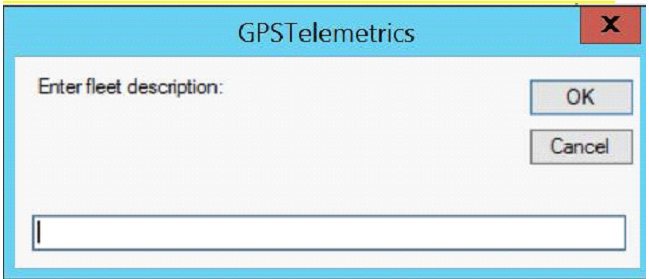
Enter Fleet Description: Enter AEMP Provider Name
To Import:
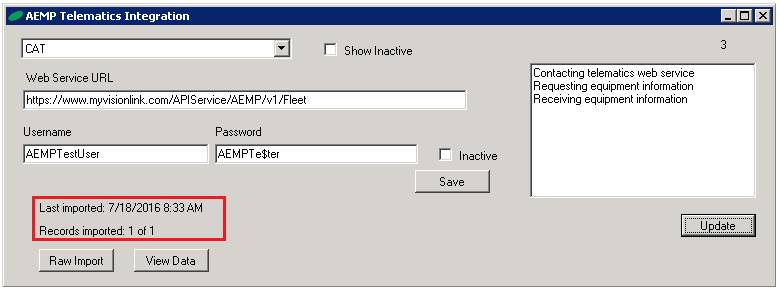
1. Select Manufacturer or GPS provider from the drop-down menu. The Web Service URL, Username and Password will populate the appropriate information.
2. Click Update
* Note: You will see on the right side of the screen, Point of Rental will go out a contact the telametics web service and request and receive the equipment information. At the bottom of the screen, you will see how many records have been updated and when the last time the file has been imported.

Web Service URL - This is the URL for the manufacture website
Username– Enter Username
Password– Enter Password
Last Imported– Shows date items were last imported
Records Imported– Number of records imported
Raw Import - This is the raw data received from the manufacturer.
View Data - This is the current data showing the links for the part and serial numbers to the GPS units. This will let you know if any unit is missing information and may still need to be linked.
Once the fields are populated, select update, files will be imported from the manufacturer. You will see in the bottom left corner, the number of files that have been imported and the last import date.
* Note: You need to set the GPS # in each of your serialized item Records. Go to Program Menu>File Maintenance>Asset Tab.